Kodi doesn't play IPTV on its own. To watch live channels on a Firestick you install Kodi, then add the PVR IPTV Simple Client add-on from Kodi's official repository and point it at your M3U playlist and EPG link. It's more steps than a dedicated IPTV app, but you get Kodi's full TV interface. Here's the whole route, including the error that trips most people up.
What are Kodi and IPTV Simple Client?
Kodi is a free, open-source media centre. Out of the box it plays local and network files, nothing more. PVR IPTV Simple Client is an official Kodi add-on that, in the words of the Kodi wiki, supports M3U playlists, live TV and radio streams, and EPG. Together they turn Kodi into a live TV player for the playlist your provider sends you.
Step 1: install Kodi on your Firestick
Kodi isn't in the Amazon Appstore, so it's sideloaded:
- Install the free Downloader app and allow it under Settings → My Fire TV → Developer Options → Install unknown apps. Our Firestick IPTV setup guide shows each screen.
- In Downloader's browser, open kodi.tv/download and choose Android.
- The page offers ARMV7A (32-bit) and ARMV8A (64-bit) builds. Most Fire TV installs use the 32-bit build; if one won't install, try the other.
- Install the file, then open Kodi.
Only download Kodi from kodi.tv — "pre-loaded" Kodi builds from other sites come with add-ons you can't vet.
Step 2: install PVR IPTV Simple Client from the repository
This is where older guides go wrong: on current Kodi versions the add-on is installed from the official repository, not just switched on.
- If you've used other PVR add-ons, disable them first — the Kodi wiki recommends it.
- Go to Settings (gear) → Add-ons → Install from repository.
- Open Kodi Add-on repository → PVR clients.
- Select PVR IPTV Simple Client and choose Install, accepting any extra components it asks for.
Step 3: add your playlist and EPG
- Open the add-on (Add-ons → My add-ons → PVR clients → PVR IPTV Simple Client) and select Configure.
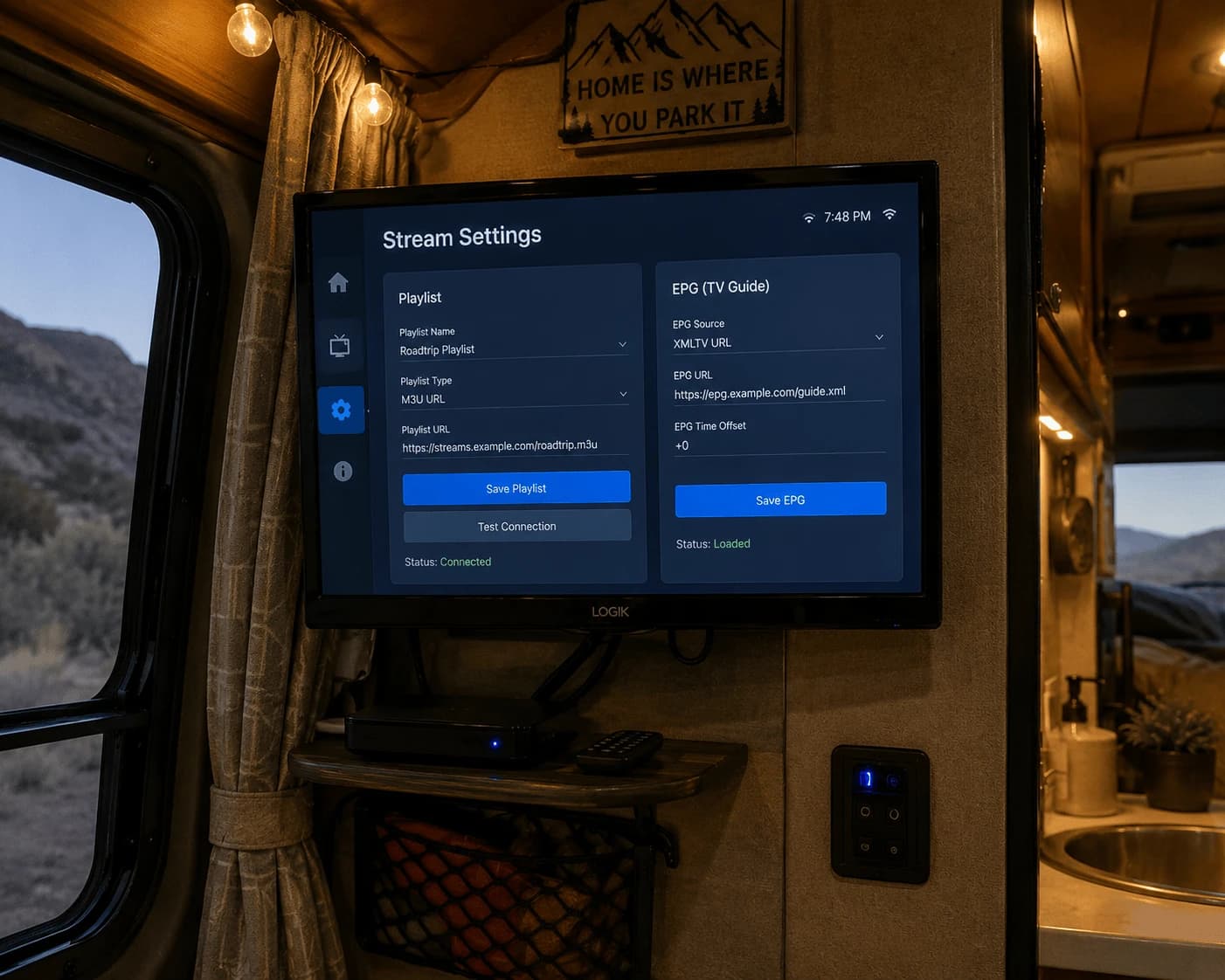
- On the General tab, set the location to Remote path (Internet address) and paste your M3U link.
- On the EPG tab, set the location to Remote path and paste your provider's XMLTV address.
- Confirm with OK, then restart Kodi. Channels appear under TV on the home screen.
IPTV Simple Client works with M3U links. If you only have Xtream details, ask your provider for the M3U version of your account — Watchzio includes one. No account yet? Try Watchzio free for 24 hours, no card needed.