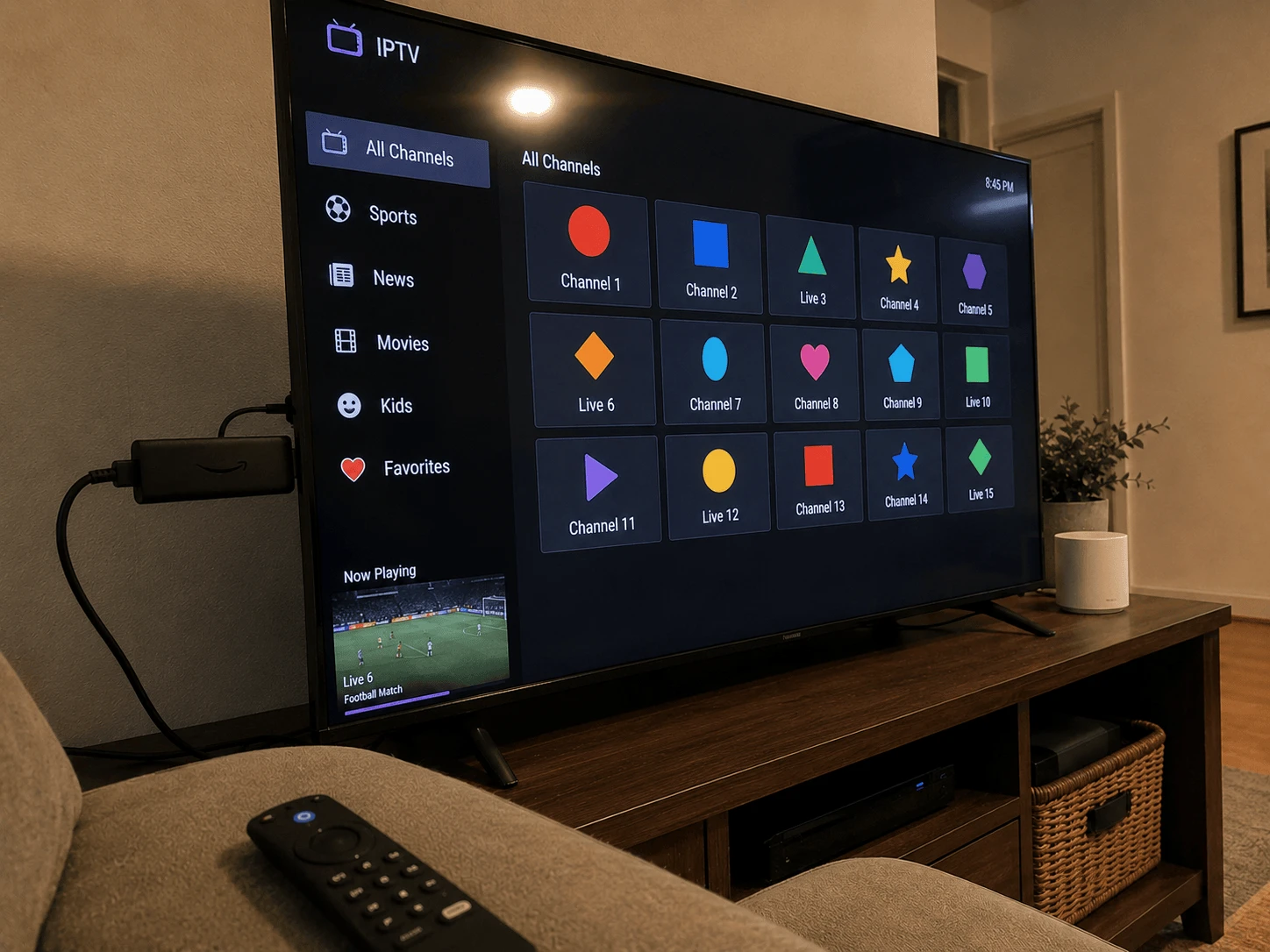
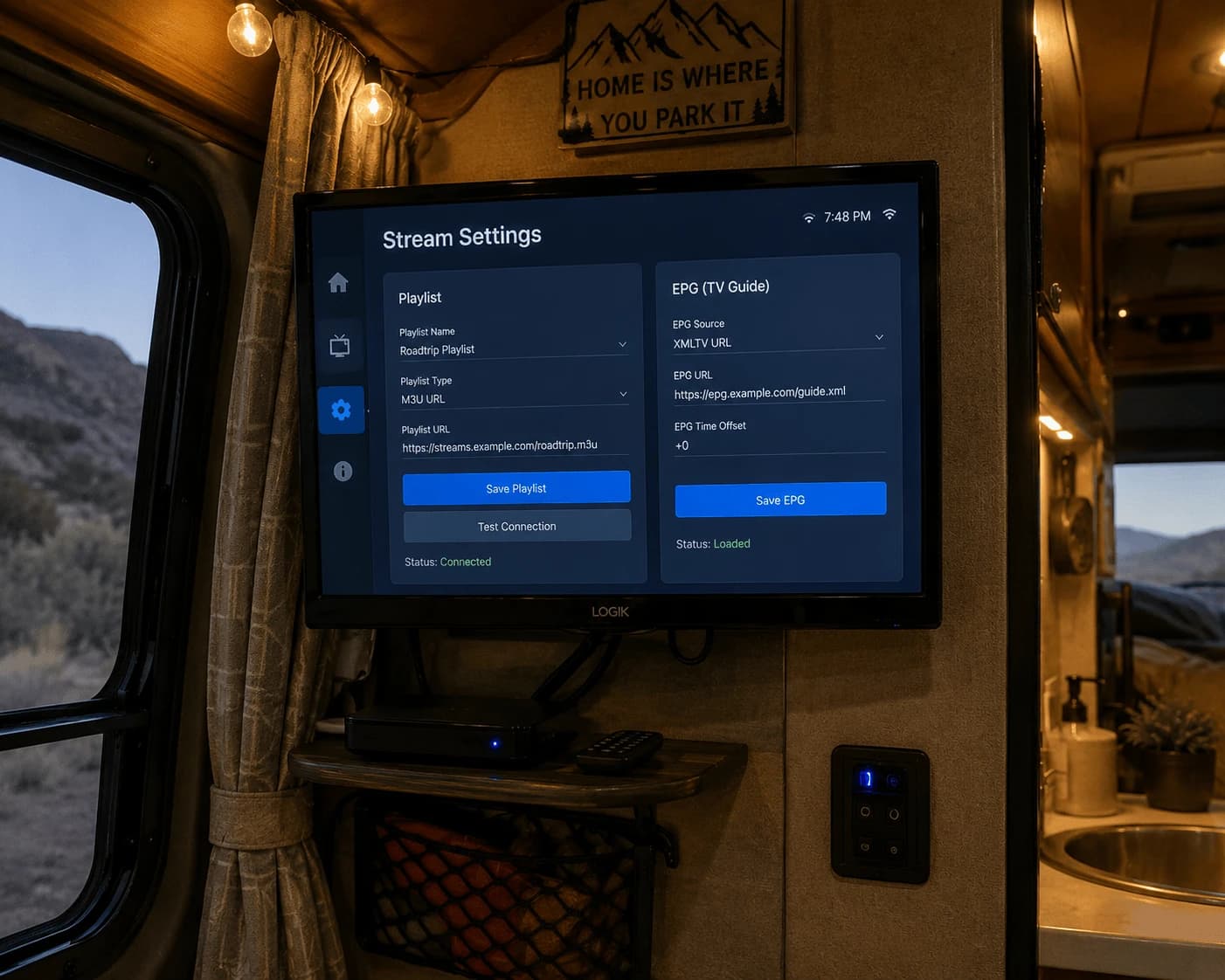
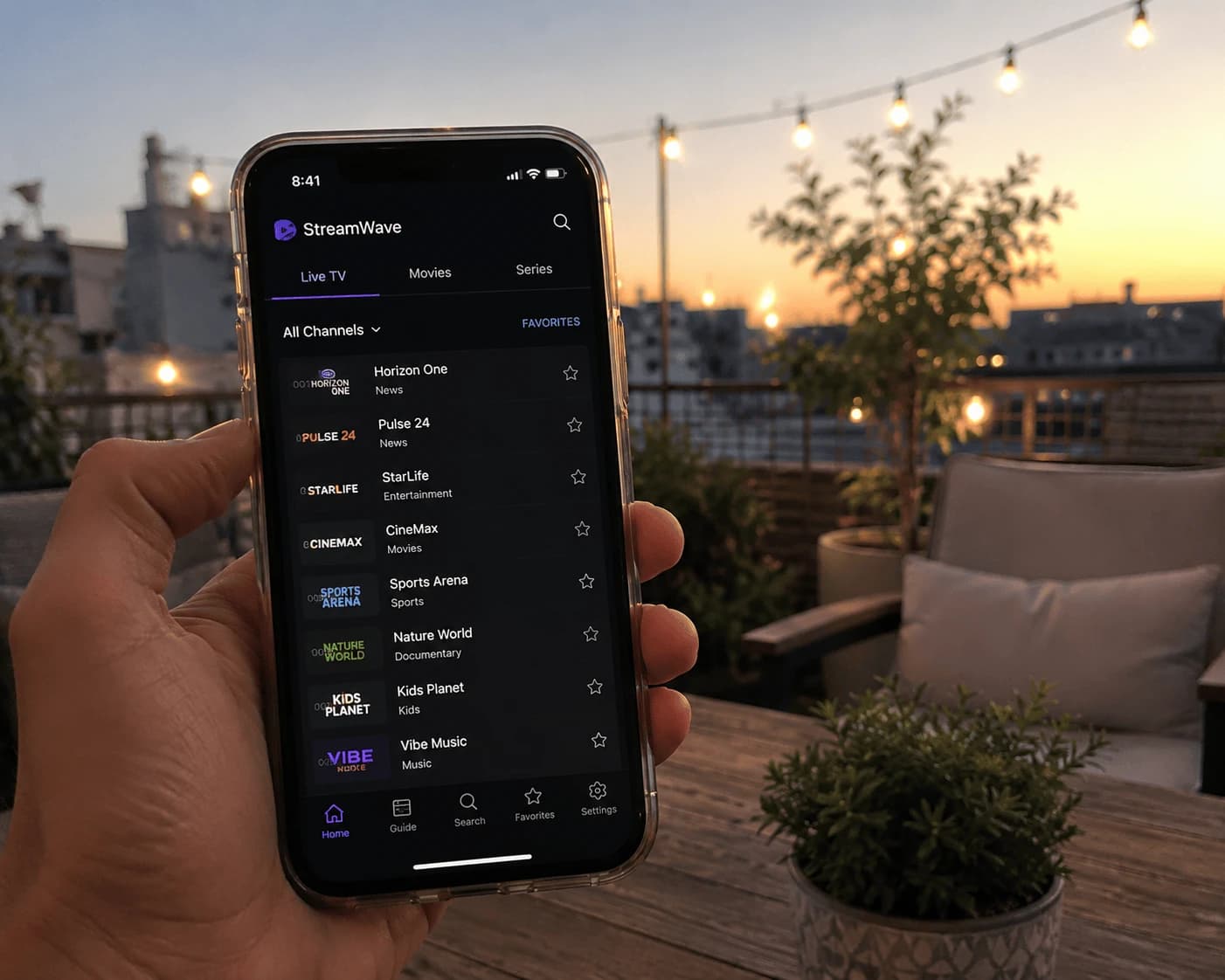
To install TiviMate on a Firestick, open the Downloader app and enter the official code 272483 (or the URL tivimate.com/apk), install the APK, then add your M3U link or Xtream login. TiviMate is the player people pick for its TV-guide layout — and getting that guide filled in is the step most tutorials skip. Both are below.
Image: TiviMate on Firestick — install, add a playlist, set up the guide
What is TiviMate?
TiviMate is a media player built for Android TV devices, including Firestick and Fire TV. You add your own playlist and it shows live TV, films and shows in a grid that looks like a cable TV guide, with catch-up, recording, multiview and parental controls. It contains no channels itself; everything comes from your provider's playlist.
How do you install TiviMate on Firestick?
TiviMate's developer publishes the Firestick install route on its own site: a Downloader code. It's sideloaded, so start by preparing your Fire TV.
Install Downloader. Search "Downloader" on the home screen and install it (orange icon, by AFTVnews).
Allow it to install apps. Go to Settings → My Fire TV → Developer Options → Install unknown apps and turn Downloader on. No Developer Options? Open Settings → My Fire TV → About and click the device name seven times. Our Firestick IPTV setup guide shows each screen.
Enter the code. Open Downloader, select the URL box, type 272483 and press Go. If it doesn't resolve, type tivimate.com/apk — same official file (about 21 MB).
Install. Choose Install, then Done, and delete the APK when Downloader offers to.
The developer notes that this direct version "has fewer restrictions and checks for updates". TiviMate is also on Google Play for Android TV devices, and it's designed for TVs — not phones.
Adding your playlist
On first launch TiviMate asks for a playlist. Pick the format your provider sent:
Xtream Codes — choose Add playlist → Xtream Codes login and enter the server address, username and password.
M3U link — choose Add playlist → M3U playlist, paste the link, give it a name and confirm.
Within seconds the channel grid appears. No playlist yet? Try Watchzio free for 24 hours — no card needed, and the details work in TiviMate straight away.
How do you get the TV guide (EPG) working?
With an Xtream login, the guide usually loads by itself. With an M3U link you may need to add it:
Open Settings → Playlists, select your playlist, then EPG sources.
Add the EPG (XMLTV) address from your provider.
Choose Update EPG and give it a few minutes — large guides take time on a Firestick.
If some channels still show "No information", their IDs don't match the guide; that's fixed on the provider's side, not in the app.
Free or TiviMate Premium?
You can install TiviMate and load a playlist for free, which is enough to check that everything plays. Premium unlocks the extra features and is bought through the separate TiviMate Companion app on an Android phone, then activated by signing in on the TV. Test your playlist first — the app is a player, so Premium doesn't add channels or improve stream quality.
Fixing common TiviMate problems on Firestick
TiviMate won't install
Low storage is the usual cause — clear space in Settings → Applications → Manage Installed Applications. Also check Settings → My Fire TV → About: some newer Fire TV models run Amazon's Vega OS instead of Android-based Fire OS and don't accept Android APKs at all, so TiviMate can't be installed on them.
"TiviMate stopped working"
Check your subscription first — an expired account looks exactly like a broken app. Then update TiviMate (the direct version checks for updates itself) and restart the Firestick.
Channels load but nothing plays, or it buffers
Aim for 10 Mbps for HD and 25 Mbps or more for 4K, and try a wired Ethernet adapter. If every channel fails, re-enter the server address exactly as your provider wrote it.
The guide is empty
Run Update EPG and wait. If it stays empty, ask your provider whether EPG is included and for the correct XMLTV address.
TiviMate or IBO Player Pro?
TiviMate is the better choice if you live in the TV guide and want recording. If you'd rather manage playlists from your phone instead of typing on the TV, IBO Player Pro is worth a look. Struggling with another player? Our IPTV Smarters Pro troubleshooting guide covers its common errors.
The Bottom Line
Downloader code 272483, add your Xtream login or M3U link, then sort the EPG — that's a TiviMate setup that looks like real TV. Need a playlist to try it with? Start a free 24-hour Watchzio trial with no credit card, or compare the IPTV subscription plans.
Watch on any device — no cable needed
Start your free 24-hour trial. No credit card required.
The official code published on tivimate.com is 272483. If it does not work, enter tivimate.com/apk in the Downloader app; it downloads the same official APK.
Is TiviMate free on Firestick?
You can install it and load a playlist for free. Premium features are unlocked with a purchase made in the TiviMate Companion app on an Android phone, then activated by signing in on the TV.
Why will TiviMate not install on my Fire TV?
Usually because storage is full. Some newer Fire TV models also run Amazon's Vega OS, which does not accept Android APKs, so TiviMate cannot be installed on them. Check Settings → My Fire TV → About.
How do I add an EPG in TiviMate?
Open Settings → Playlists, select your playlist, choose EPG sources, add the XMLTV address from your provider and run Update EPG. With an Xtream login the guide usually loads automatically.
Does TiviMate come with channels?
No. TiviMate is only a player; the channels, films and shows come from the playlist your IPTV provider supplies.
Why did TiviMate stop working?
Most often the IPTV subscription has expired. Otherwise update TiviMate, restart the Firestick and re-enter the server address exactly as your provider sent it.
Perfect Player still works but is no longer maintained. How to add your playlist and EPG, reload them, fix common errors, and which player to install instead.
Open an IPTV M3U playlist in VLC on Windows or Mac, turn Xtream login details into a working link, show the channel list and fix 'can't open MRL' errors.
Which IPTV Smarters app is the official one on the App Store, how to install it on iPhone or iPad, add your playlist, AirPlay it to your TV and fix common errors.