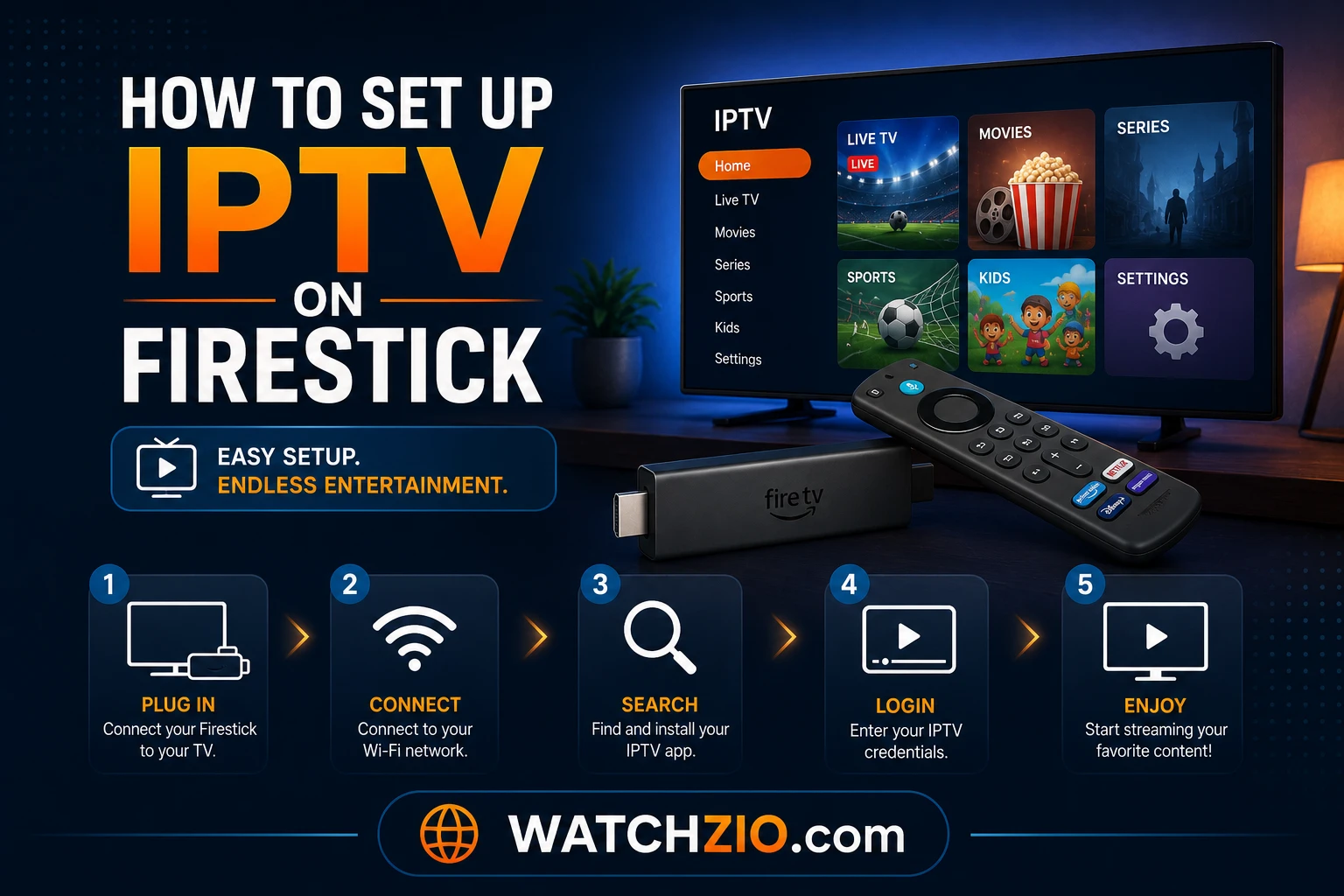
To set up IPTV on a Firestick, you allow the Downloader app to install apps, use it to install an IPTV player, then add the playlist your provider sent you. It takes about ten minutes. The step most guides skip is that newer Fire TV models hide Developer Options — so we start there, and then we use only player codes published by the app developers themselves.
What you need before you start
- A Firestick or Fire TV running Fire OS. Most sticks do. Some newer Fire TV models run Amazon's Vega OS instead, which can't install Android apps — check under Settings → My Fire TV → About.
- Your IPTV details — an Xtream login (server URL, username, password) or an M3U link. Watchzio sends both by email the moment you sign up. No account yet? Start a free 24-hour trial — no card needed.
- A decent connection — about 10 Mbps for HD and 25 Mbps or more for 4K.
Step 1: turn on Developer Options
- On the home screen, open Settings (the gear icon) and select My Fire TV.
- If you see Developer Options, skip to Step 2.
- If you don't, select About, then click your device name (for example "Fire TV Stick 4K") seven times. A message confirms you're now a developer.
- Go back one screen: Developer Options now appears in the list.
This is a standard Amazon setting, not a jailbreak. It lets you choose which apps may install other apps.
Step 2: install Downloader and allow it
- On the home screen, go to Find → Search, type Downloader and install the orange app by AFTVnews from the Amazon Appstore.
- Go to Settings → My Fire TV → Developer Options → Install unknown apps and switch Downloader on. Older Fire OS versions show a single Apps from Unknown Sources switch instead — turn that on.
- Open Downloader and allow the permissions it asks for.
Step 3: choose and install an IPTV player
A player is the app that shows your channels; the subscription provides them. These three cover almost everyone:
| Player | Best for | How to install on Firestick |
|---|---|---|
| IBO Player Pro | Adding the playlist from your phone or laptop instead of the remote | Downloader code 481220, published by the developer |
| TiviMate | The best TV guide, recording and favourites | Downloader code 272483 or tivimate.com/apk, from tivimate.com |
| IPTV Smarters Pro | Separate Movies and Series tabs, several user profiles | Amazon Appstore where listed in your region, otherwise the official site |
To use a code: open Downloader, select the address box, type the code, select Go and then Install. When it finishes, choose Delete to remove the installer file and free up space.
Only use codes from the developer. A Downloader code is just a short link to a file — a random code from a forum could install anything. Step-by-step guides for each player: IBO Player Pro, TiviMate and IPTV Smarters Pro.
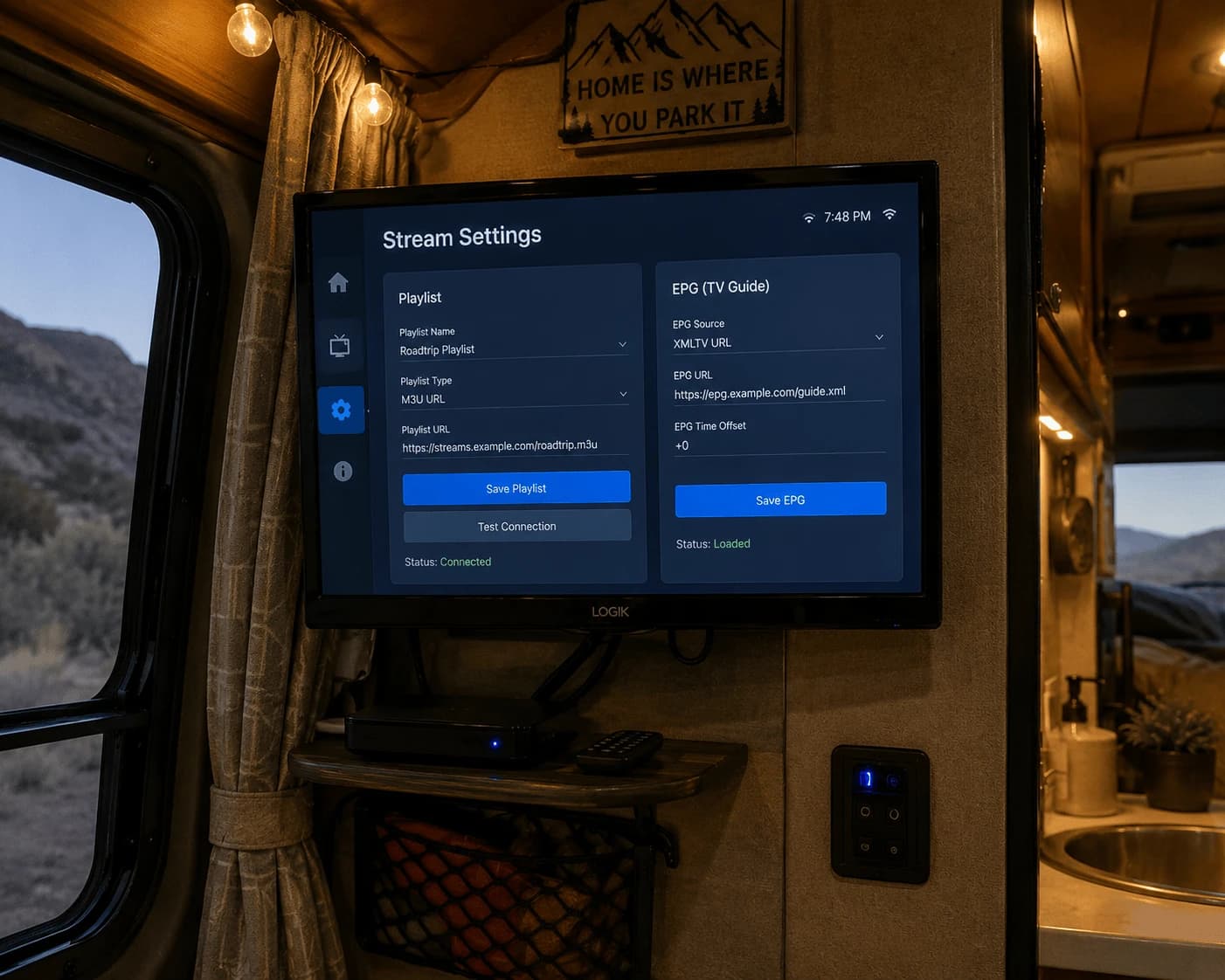
Step 4: add your IPTV playlist
From your phone or laptop (IBO Player Pro)
Open IBO Player Pro and note the MAC address and Device Key on the screen. On your phone or computer, go to iboproapp.com, enter those two details and paste your M3U link or Xtream details. Restart the app and the channels load. No typing with the remote — the easiest way to "send" a playlist to a Firestick.
With the remote (TiviMate, Smarters)
- Choose Add playlist (TiviMate) or Add user (Smarters).
- Select Xtream Codes and enter the server URL, username and password exactly as your provider sent them — or select M3U and type the link.
- Wait 30–60 seconds while thousands of channels, films and series load.