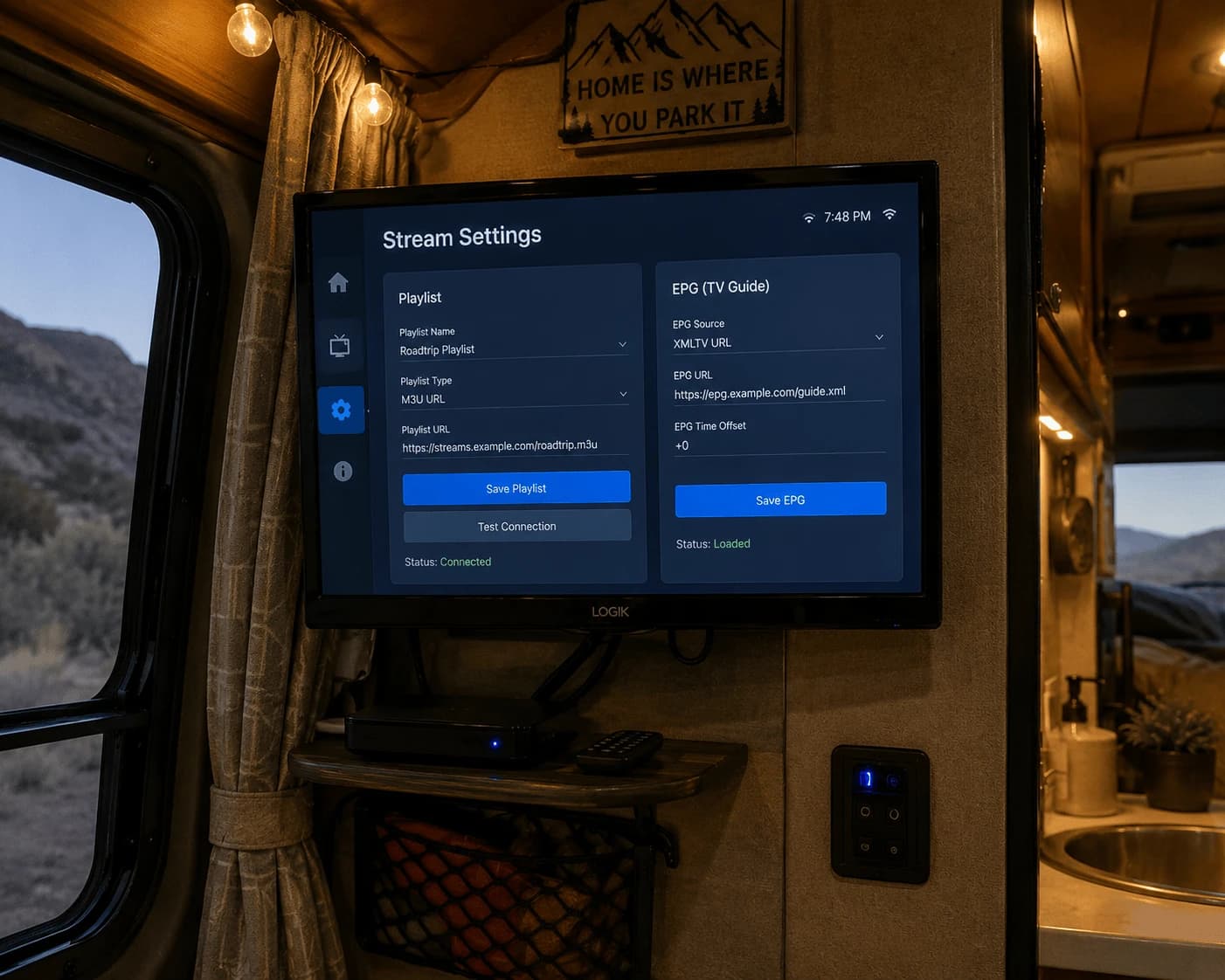
On an Android TV box or Google TV device, the simplest way to get TiviMate is the Google Play Store — the developer lists it there for Android TV. If your box has no Play Store, or you want the direct version, use the Downloader app with the official code 272483 (or tivimate.com/apk). Then add your M3U link or Xtream login and set up the TV guide.
What is TiviMate?
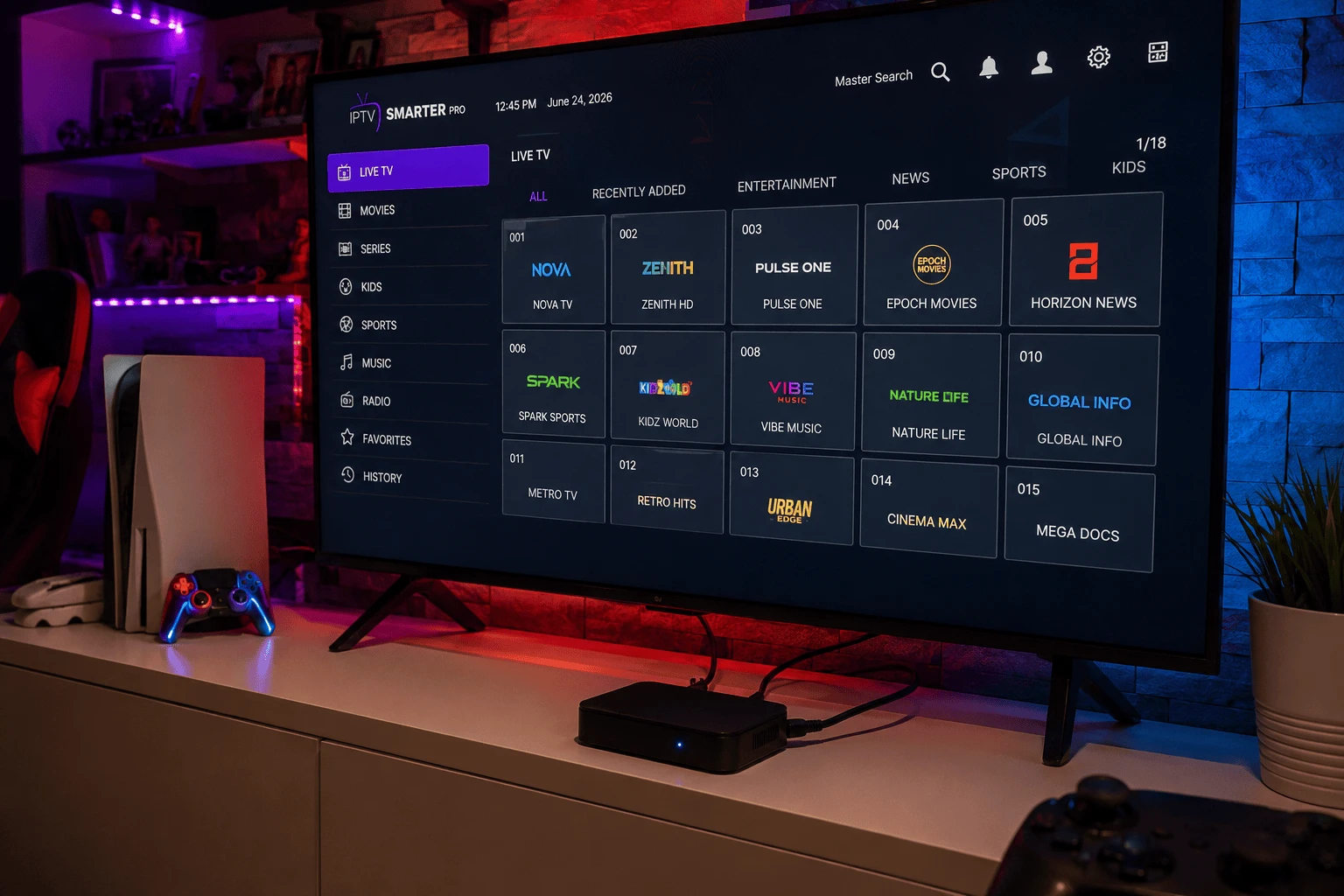
TiviMate is a media player made for Android TV devices. You add your own playlist and it shows live TV, films and shows in a TV-guide grid, with catch-up, recording, multiview and parental controls. It has no channels of its own — everything comes from your provider's playlist. It's built for TVs, so the developer notes it isn't optimised for phones and tablets.
Why an Android box suits TiviMate
Android TV boxes often have more memory than a streaming stick, which helps when TiviMate draws a large guide, and many have an Ethernet port — the single best fix for buffering. Google TV devices, Xiaomi Mi Box/TV Box models and most other certified Android TV boxes all run TiviMate the same way.
How do you install TiviMate on an Android TV box?
Option 1: Google Play (easiest)
- Open the Google Play Store on the box (on Google TV, use Search on the home screen).
- Search for TiviMate and install TiviMate IPTV Player.
- Open it from your apps.
Option 2: the direct APK
The developer also offers a direct version that it says "has fewer restrictions and checks for updates":
- Install the free Downloader app from Google Play.
- Allow Downloader to install apps. The menu name varies by box — usually Settings → Apps → Security & restrictions → Unknown sources, or Settings → Device Preferences → Security on older boxes.
- Open Downloader, enter 272483 (or
tivimate.com/apk) and install the file.
"Google blocked the app"
When you sideload an app on a Google TV device, Google Play Protect may show a warning or ask you to confirm. If the file came from tivimate.com, choose the option to install anyway. If you'd rather avoid the warning altogether, use the Google Play version.
Adding your playlist
- Xtream Codes — choose Add playlist → Xtream Codes login and enter the server address, username and password.
- M3U link — choose Add playlist → M3U playlist, paste the link and confirm.
The channel grid loads within seconds. No playlist yet? Try Watchzio free for 24 hours, no card needed.